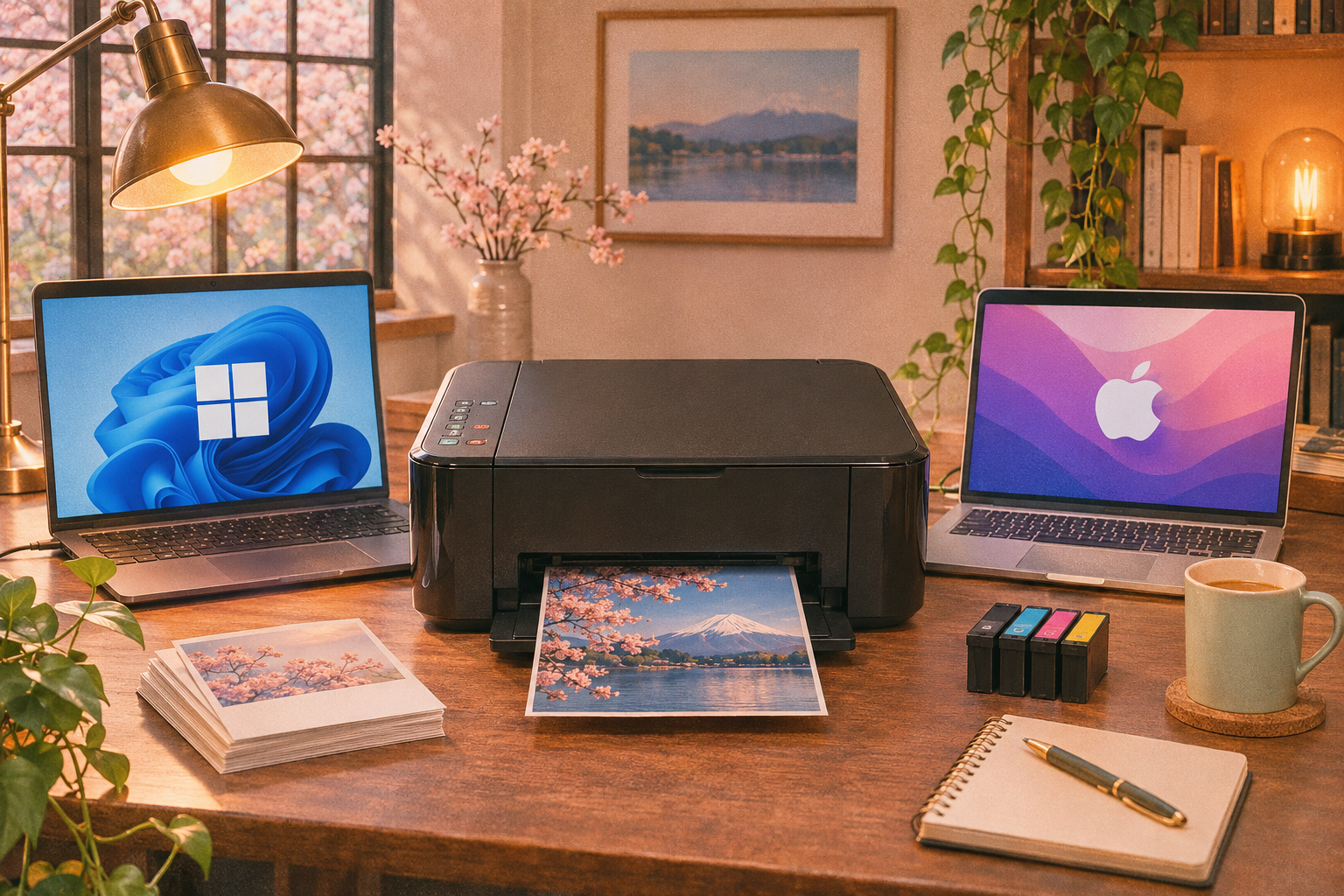
Canon’s download page for the PIXMA MG3620 is a maze of dropdowns, and half the links it eventually spits out are for the wrong OS. I have talked folks through this printer over and over, and the driver situation is honestly simpler than Canon makes it look. There are two real paths: a full driver package from Canon, or a bare-bones driver that Windows installs by itself. Each one has a place. Here is how to pick.
What you are actually downloading
The MG3620 is a budget all-in-one: print, scan, copy, wireless. Canon splits its software for this model into two files. The full package (usually labeled something like the MG3600 series MP Drivers, plus a separate scanner driver) installs the print driver, the scan driver, and the Canon utility that handles ink levels and wireless setup. The other option is the driver that Windows Update pulls in on its own, which prints fine but often skips the scanner side.
That distinction matters more than most people realize. If you only ever print, the Microsoft-supplied driver is usually enough. If you scan, you want Canon’s package, because the generic driver rarely exposes the scanner properly.
Windows: Canon’s full package vs. the built-in driver
Option 1: Canon’s official package
Go to Canon’s support site, search the MG3620 (or MG3600 series), pick your exact Windows version, and download the MP Drivers package. It arrives as an .exe installer. Run it with the printer powered on and connected, and let it finish before you do a single other thing. This is the route I recommend for a fresh setup, because it also installs the scanner driver and the Canon IJ tools in one go.
One thing to watch: Canon’s installers sometimes try to configure wireless during setup. If you are on USB, skip that step when prompted. Fighting the wireless wizard mid-install is how people end up with a half-configured printer.
Option 2: Let Windows find it
Plug the printer in over USB, power it on, and Windows usually detects it and installs a driver silently. If it does not, open Device Manager (right-click Start, then Device Manager), expand Printers or Print queues, right-click the MG3620 entry, and choose Update driver, then Search automatically for drivers. Windows will fetch the best match it has.
This is the fast path and it is genuinely fine for printing. The catch is the scanner. Microsoft’s generic driver can print, but the scan function typically needs Canon’s own software to appear in Windows Fax and Scan or the Canon IJ Scan Utility. If scanning matters, do not stop here.
Option 3: Point Device Manager at a downloaded file
If you grabbed Canon’s package but the installer balked, you can install the driver manually. Download the package from Canon’s site, note where it lands, and uncompress it if it is a zip. Then in Device Manager, right-click the printer, hit Update driver, pick Browse my computer for drivers, and aim it toward that folder. This is the method Microsoft documents for installing drivers you have already downloaded, and it works when the .exe installer refuses to run.
In my experience, when Windows reports that it already has the optimal drivers in place, the version on hand is either the same or newer than what you were trying to install. Not an error. Just move on.
The “printer driver is unavailable” error
This one shows up on Windows 11 more than it should. The fix order I use:
- Update the driver first. Device Manager, right-click the printer, Update driver, Browse my computer for drivers, and point at the Canon files. If that fails, run the wizard again and choose Search automatically for drivers.
- If it still fails, uninstall and reinstall. In Device Manager, right-click the printer, choose Uninstall device, and check the box that wipes the driver files along with it. Restart. Windows reinstalls a fresh driver on boot, then you can run Canon’s package cleanly.
- As a stopgap, switch to the generic driver. In Device Manager, right-click the printer, Update driver, Browse my computer for drivers, then pick the device yourself from the catalog Windows shows you, and choose Generic software device. This gets you printing again, but treat it as temporary. You still want the real Canon driver afterward.
If the error keeps coming back after a clean reinstall, check your firewall. A reset of Windows Firewall settings can restore communication between the PC and the printer when nothing else explains it.
Windows Protected Print Mode is the new wrinkle
Windows 11 (and Windows Server 2025) introduced Windows Protected Print Mode, which blocks third-party printer drivers from talking to the OS as a security measure. Brother’s own documentation spells out the consequence: with the mode on, some vendor drivers simply will not install. Canon’s package can hit the same wall.
If Canon’s installer fails with no clear reason on a recent Windows 11 build, check this setting. Go to Settings > Bluetooth & devices > Printers & scanners, scroll to Printer preferences, and look at Windows protected print mode. If it says Turn off, click it. If it already says Set up, the mode is off and this is not your problem. Turning it off lets the Canon driver install normally, at the cost of that extra security layer.
Mac: AirPrint vs. Canon’s driver
On macOS the MG3620 is usually recognized automatically over AirPrint. Plug it in or connect over Wi-Fi, open System Settings (or System Preferences on older macOS), go to Printers & Scanners, and add it. AirPrint handles printing without a Canon download at all.
But AirPrint is limited. It does not always expose the scanner, and it strips out some quality and maintenance options. If you want the full feature set, download Canon’s Mac driver package for the MG3600 series from Canon’s support site, install it, then remove the AirPrint entry and re-add the printer so macOS picks the Canon driver instead. That extra step is the one most people miss. Without it, you are still on AirPrint even after installing Canon’s software.
Canon’s Mac packages are also tied to macOS version. Grab the one that matches your release. An installer built for an older macOS often refuses to run on a newer one.
Which route to take
Print only, on Windows? Let Windows install it and move on. That is the least friction and it works.
Scan or want ink-level monitoring? Get Canon’s full package. The generic driver will leave you hunting for the scanner.
Stuck with “driver unavailable”? Clean uninstall first, delete the driver software, reboot, then reinstall from Canon. Do not stack installers on top of a broken one.
One habit worth keeping: before any printer driver change, set a System Restore point. It is thirty seconds of insurance, and it has saved me from a bad Canon installer more than once.